
Guozi Asset Management System — Account Setup Guide
Asset Platform Entry:
https://ams.eitech.edu.cn/zcpt/login/sso_jinzhi
Note: Please be sure to upload the procurement approval form, invoice, physical product photo, contract (if any), acceptance form (operate according to the requirements of the relevant management department), order, etc. If there is a discrepancy between the subsequent reimbursement amount and the invoice amount, please upload the payment voucher. If the equipment is purchased through an import agent, please confirm and upload the handling fee/agency fee invoice.
After logging in, select the corresponding entity to enter.
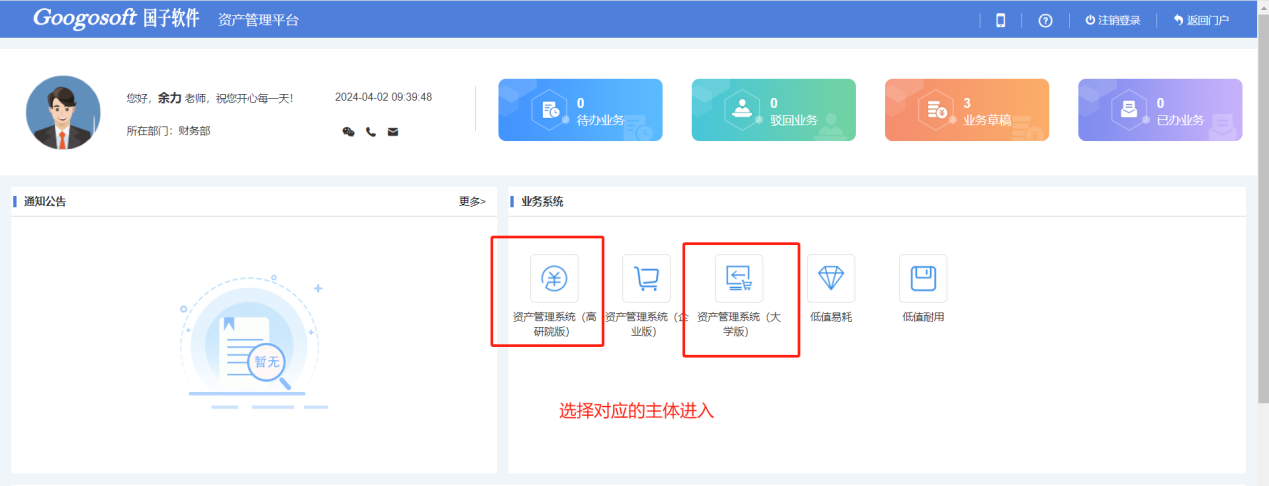
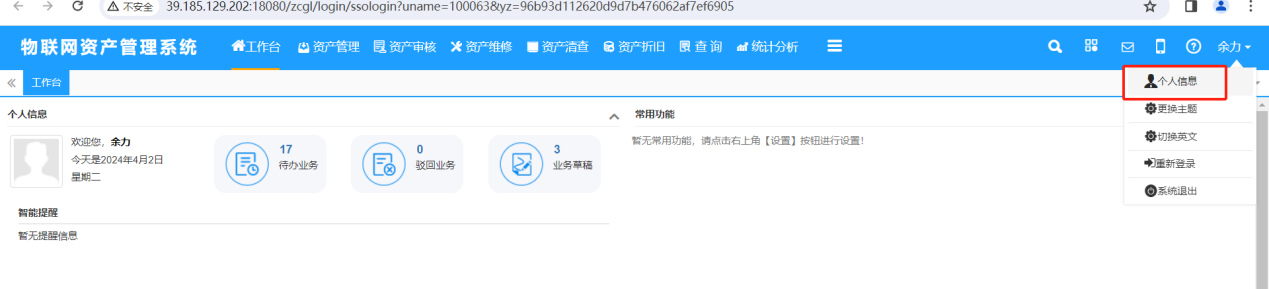
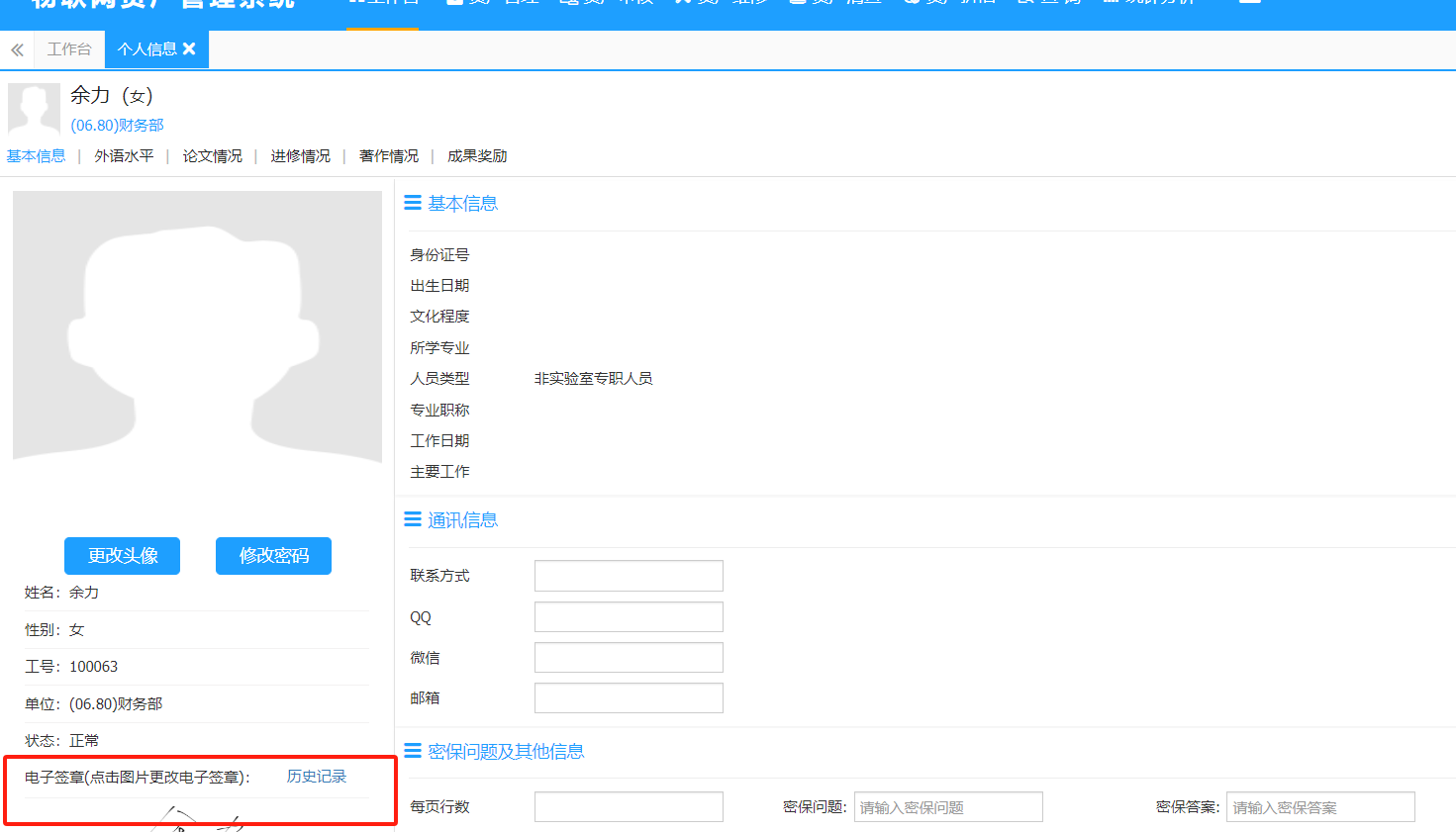
For first-time login, please upload signatures/seals separately in both the University and the Institute of Advanced Study systems (the system is limited and cannot synchronize signatures/seals).
You can independently choose to establish the account as a user or as an administrator.
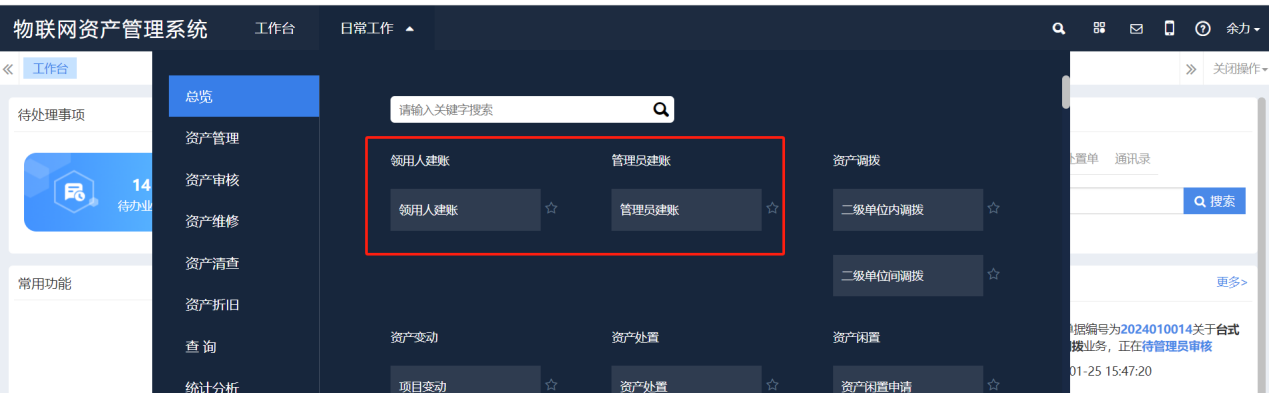
Taking administrator account establishment as an example:
1. Create Acceptance Form
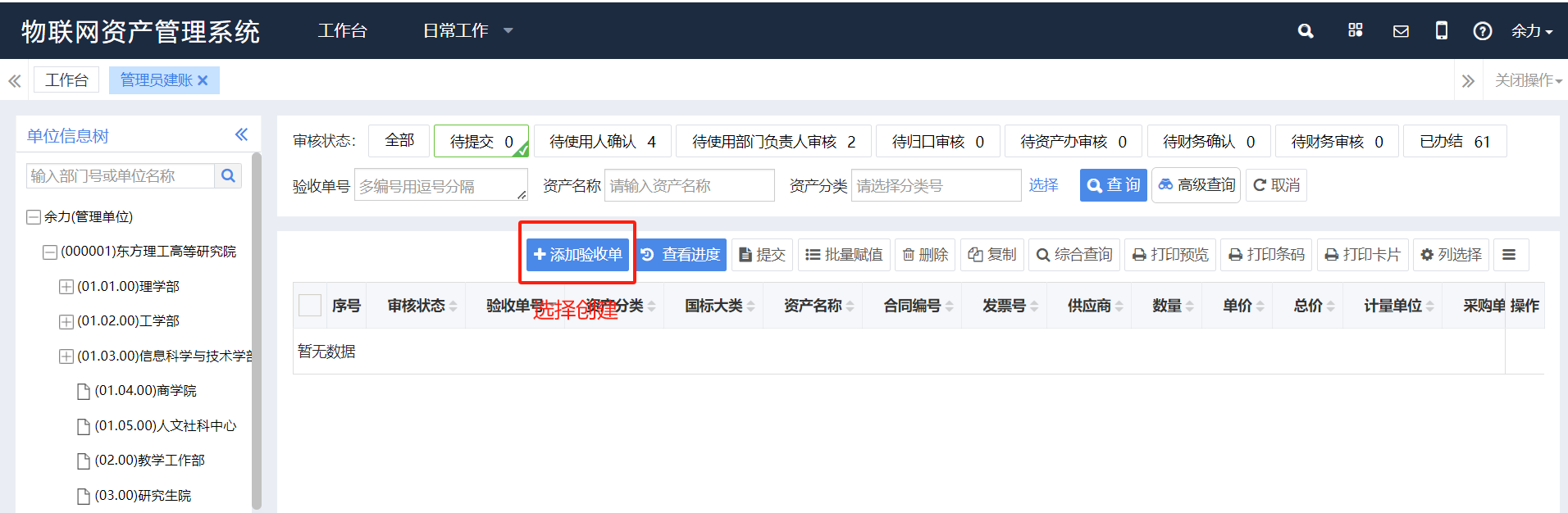
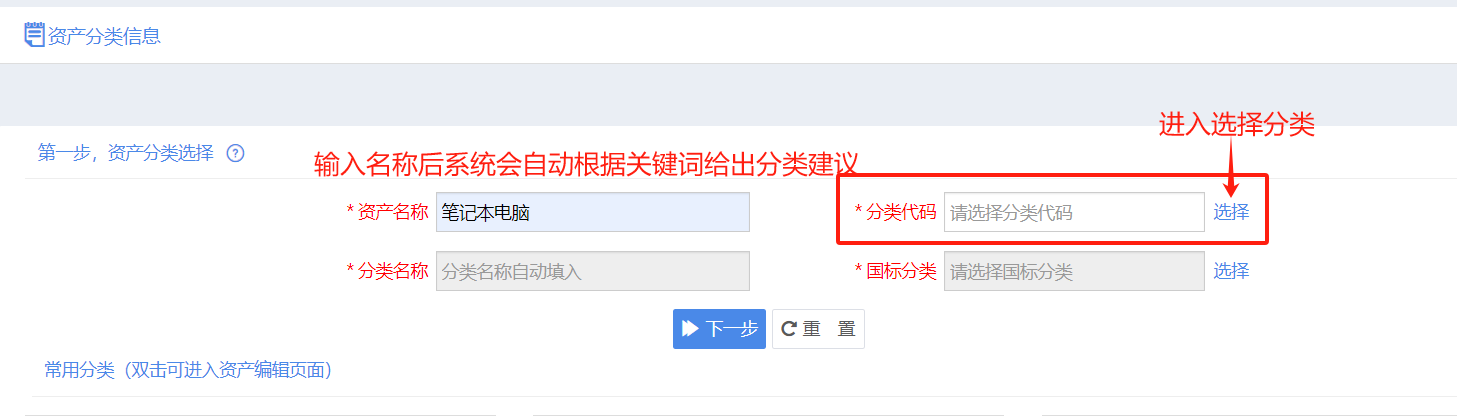
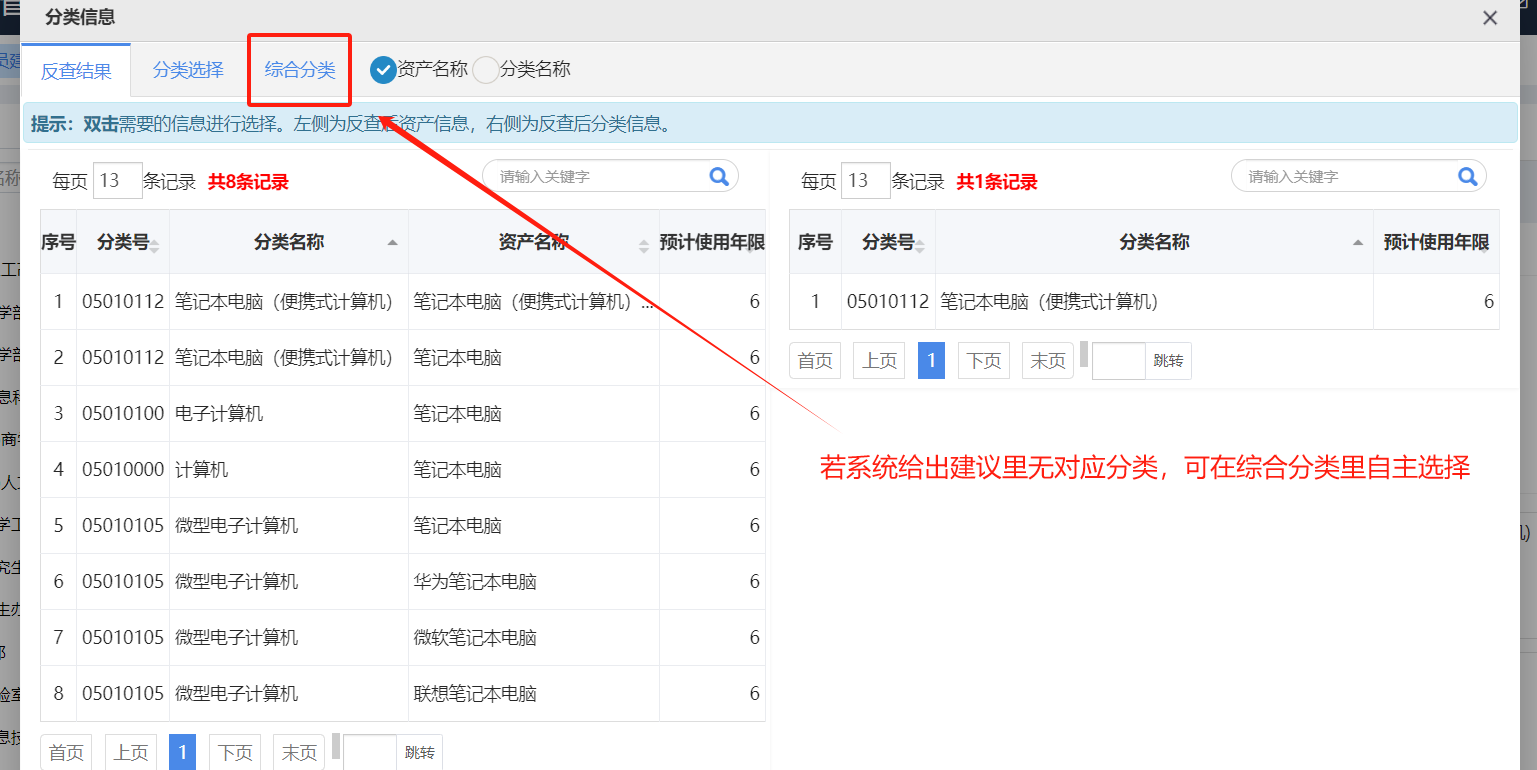
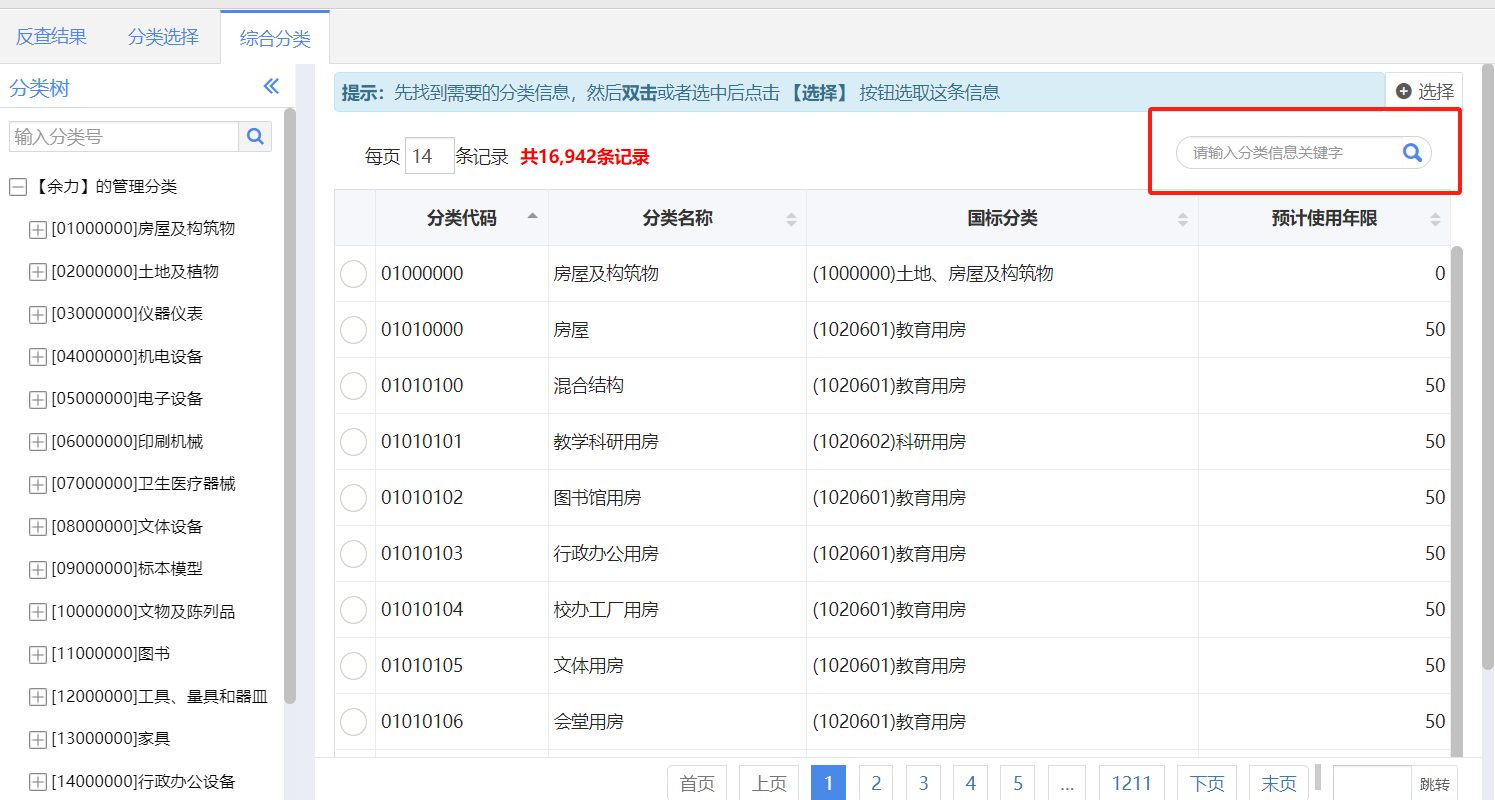
Note: The category of equipment can be determined and selected based on the equipment's purpose, intended use, or the category of supporting equipment. The classification must be selected down to the endmost level (the last digit of the classification code is non-zero).
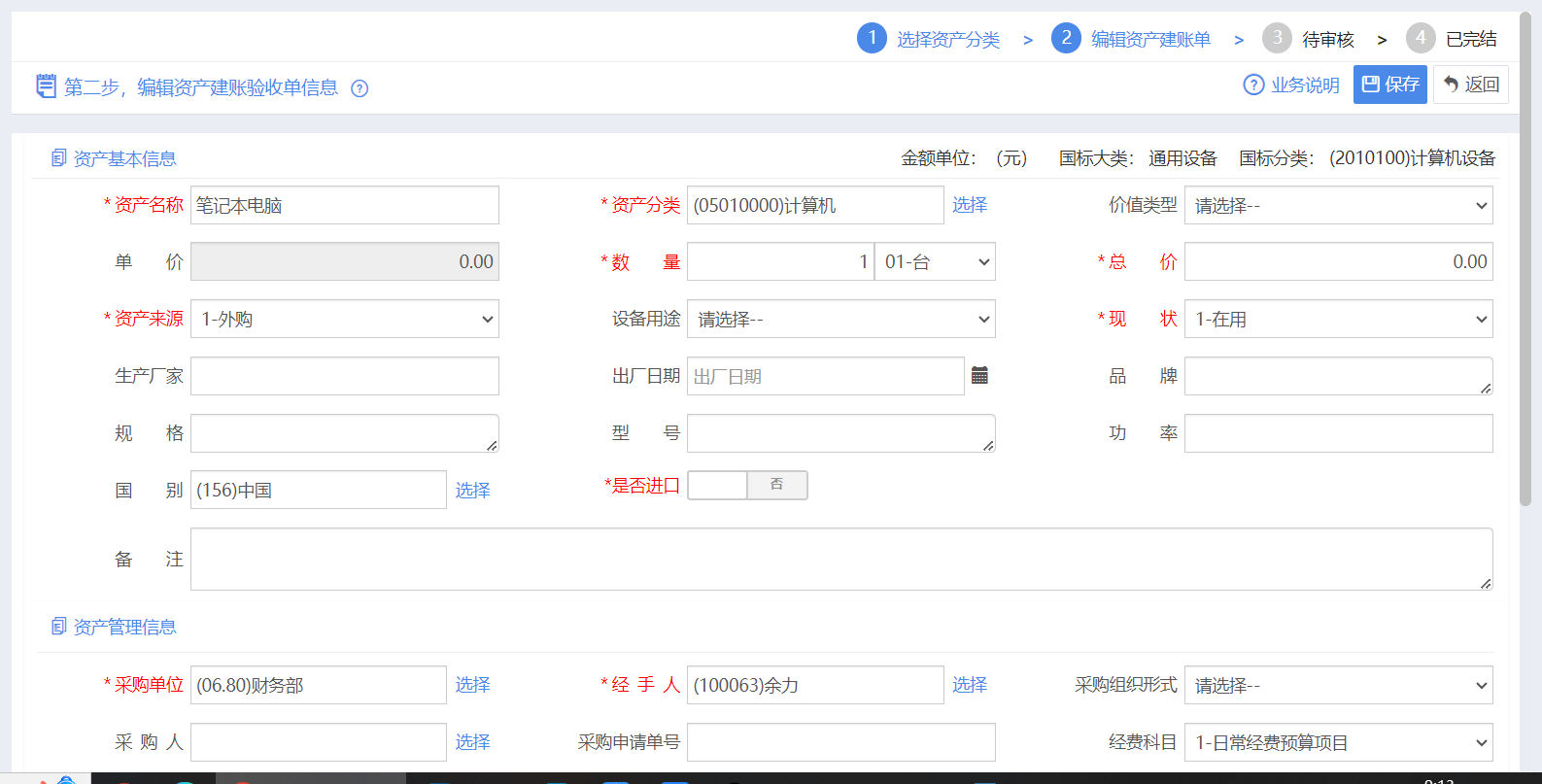
2. Fill in Basic Information
Please fill out the acceptance form as completely as possible for future inquiries.
The procurement unit should be filled in truthfully according to the budget expenditure unit on the procurement approval form.
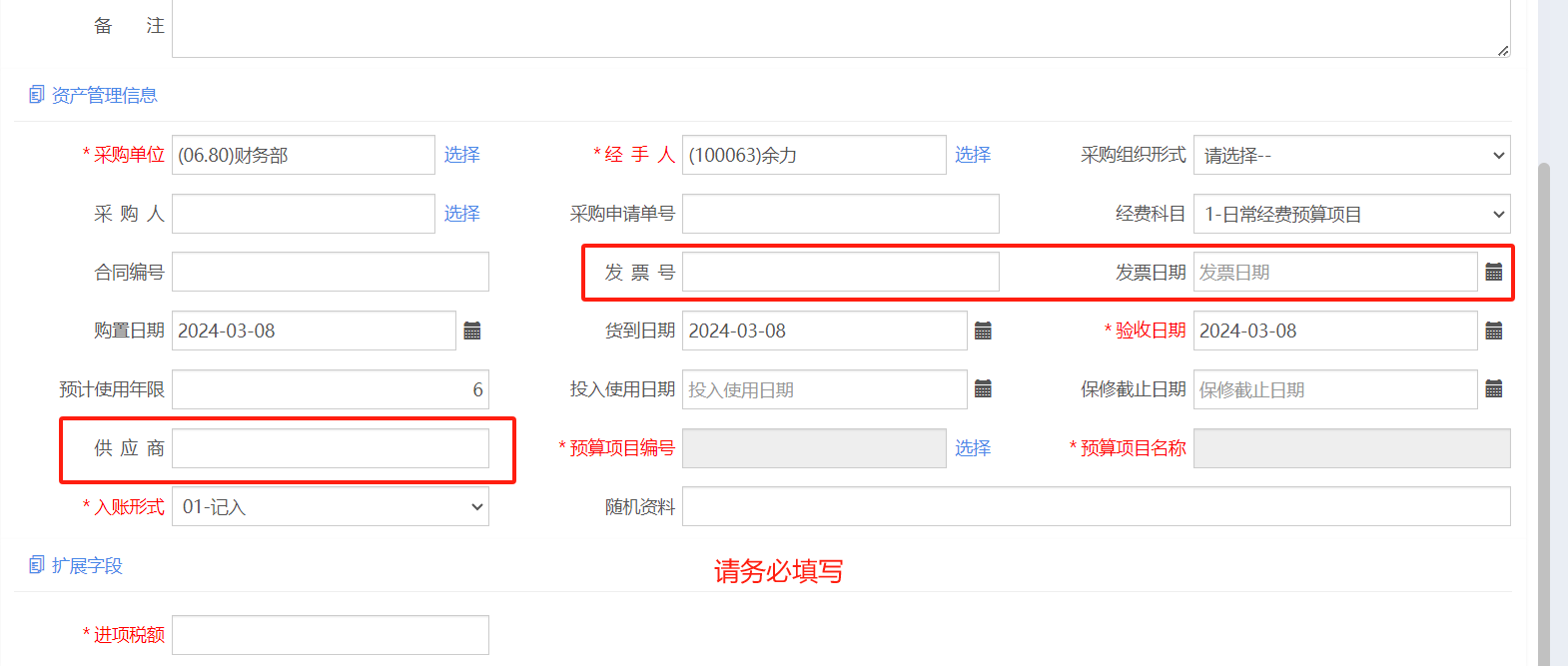
Note: The budget project should be selected according to the budget project applied for in the procurement approval form; the invoice number and supplier should be filled in according to the information on the invoice. If the actual payment amount is less than the invoice amount, please note the actual payment amount and upload the relevant payment attachments.
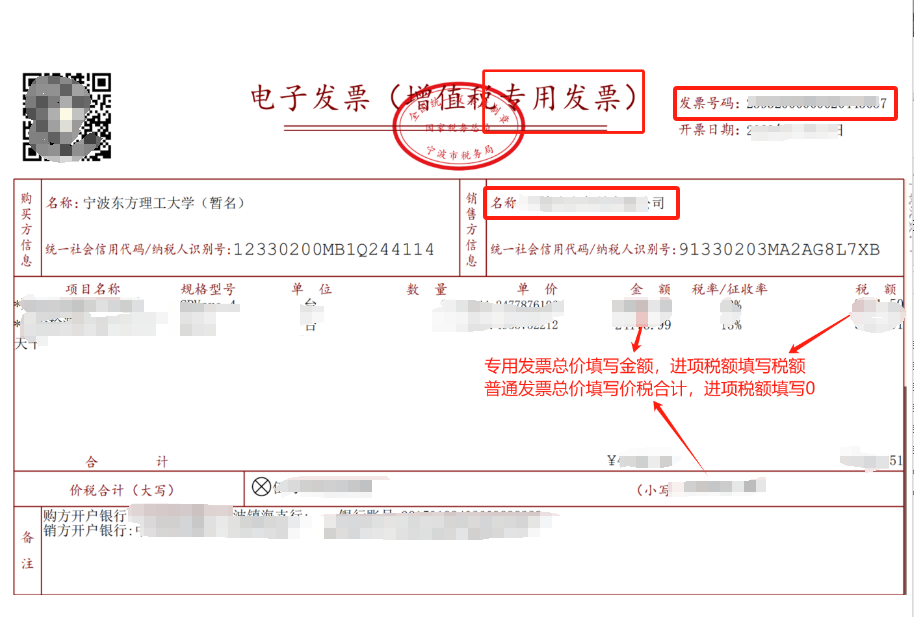
If the invoice is a special VAT invoice, please fill in the total price as the amount (excluding tax), and fill in the input tax as the tax amount. See the table below for details:
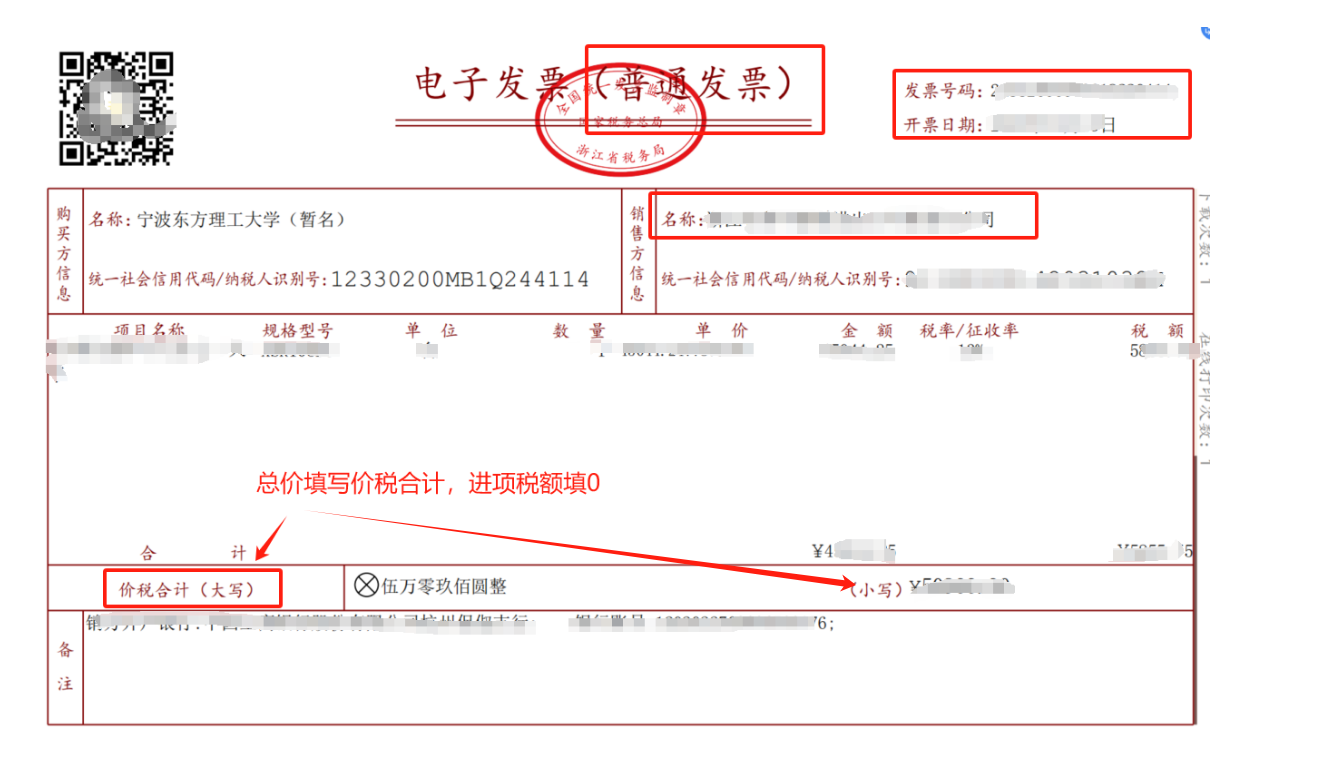
If the invoice is a general VAT invoice, please fill in the total price as the tax-inclusive total, and fill in the input tax as 0. See the table below for details:
After completion, select Save to proceed to the next step, and fill in the user, direction of use, department of use, and storage location.
After the administrator submits the account establishment, it will first be confirmed by the user, and then reviewed by the head of the using department, the relevant management department, and the Asset Office.

Note: For the document information at the bottom, please be sure to upload relevant attachments of the asset, including but not limited to contract, invoice, procurement approval form, physical photos, acceptance form (if any), three-party price comparison form (if no contract), payment proof/screenshot, etc.

After submission, you can check the progress on the account establishment page. After the Asset Office approves, you can export/print the warehousing list and requisition list through print preview. (The progress shows that the Asset Office has approved, and Finance Pending Review means that the asset warehousing process has ended, and the complete warehousing list has been generated. Financial review is only used by the Finance Department for financial account establishment.)
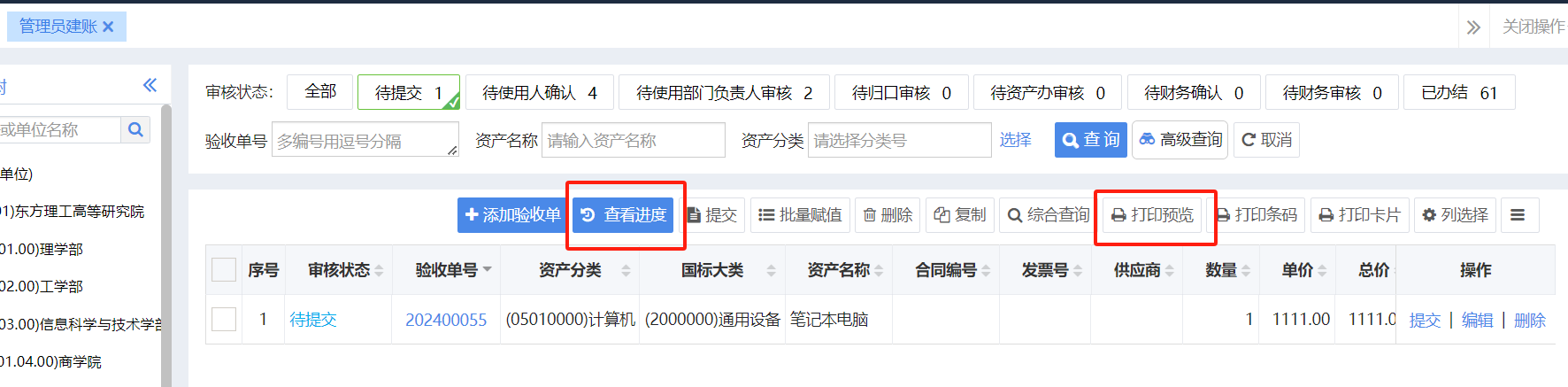
* If you need to withdraw a submitted process, you can go to the User Account Establishment / Administrator Account Establishment interface, check "All" for the review status, and select Revoke, Modify, or Delete on the far right of the process that needs to be withdrawn.

